
Documentation
RewardCrate
Setup and user guide
Adding cart goals, choosing their rewards, tuning the suggestions that close the gap, placing the bar and reading the stats.
// Getting started
Install it
- In Plugins → Add New, search for RewardCrate, then install and activate it. Or download the zip from WordPress.org and upload it.
- WooCommerce must be active too.
- Open WooCommerce → RewardCrate.
It needs WordPress 6.4 or newer, WooCommerce 8.0 or newer and PHP 7.4 or newer. Tested up to WordPress 7.1 and WooCommerce 11.2.
Adding a goal
- On the Goals tab, tick Show cart goals to shoppers.
- Click Add goal and set the Cart amount to unlock.
- Give it a Label. Shoppers see it on the bar, for example “Free Gift”.
- Choose the Reward: Free shipping, Free gift or Discount.
- Add as many goals as you like, then click Save changes.
Goals are measured on the cart subtotal before discounts, so an unlocked discount never pushes the cart back below its own goal. Measure the cart amount decides whether tax is included.
Managing goals
Live: every goal card has its own switch. Switch it off to pause the goal without losing it; its history stays on the Stats tab.
Duplicate copies a goal, and Remove asks once more before deleting it.
Icon on the bar is picked from the reward, or choose Truck, Gift, Tag, Percent, Star, Heart, Crown or Bolt.
No goals yet? Start from a common setup: Free shipping only, Free shipping, then 10% off, or Shipping, gift and discount.
The Goal ladder at the top shows every goal on one line. Save with Ctrl+S or Cmd+S.
// Rewards
The three rewards
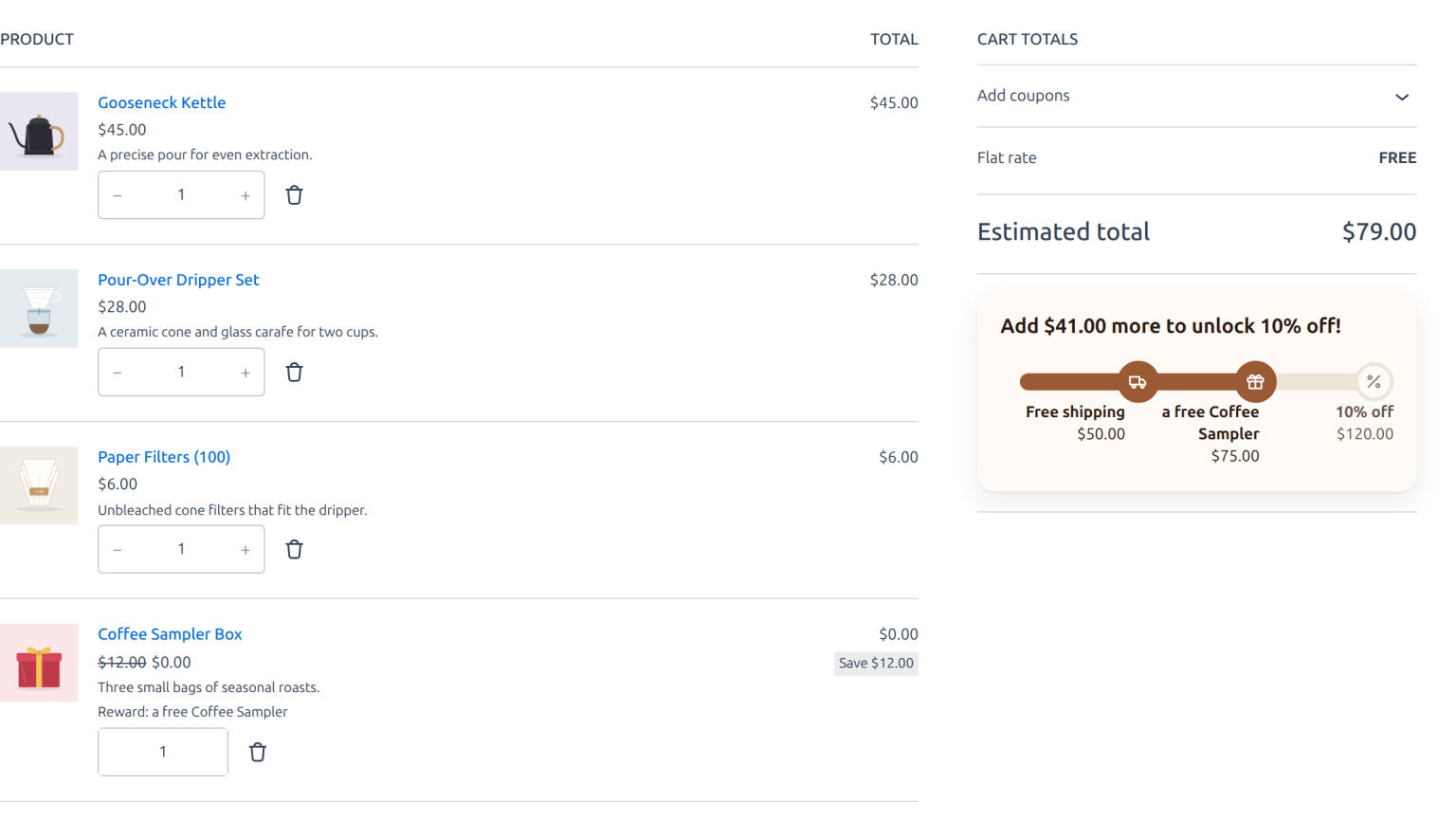
If a gift product goes out of stock, the gift is skipped and the goal still shows as reached. It is written to the WooCommerce log under the source rewardcrate. Tick Combine goal discounts with individual-use coupons if goal discounts should stay on beside coupons marked “Individual use only”.
// Gap-filler
Suggestions that close the gap
- On the Gap-Filler tab, tick Suggest products that close the gap to the next goal.
- Set the Price ceiling: products are suggested up to this many times the gap, from 1 to 3. 1.25 allows up to a quarter more than the gap.
- Choose how many Products to suggest, from 1 to 6.
- Add Pinned products to suggest them first whenever their price fits.
- Leave anything out with Never suggest these products and Never suggest from these categories.
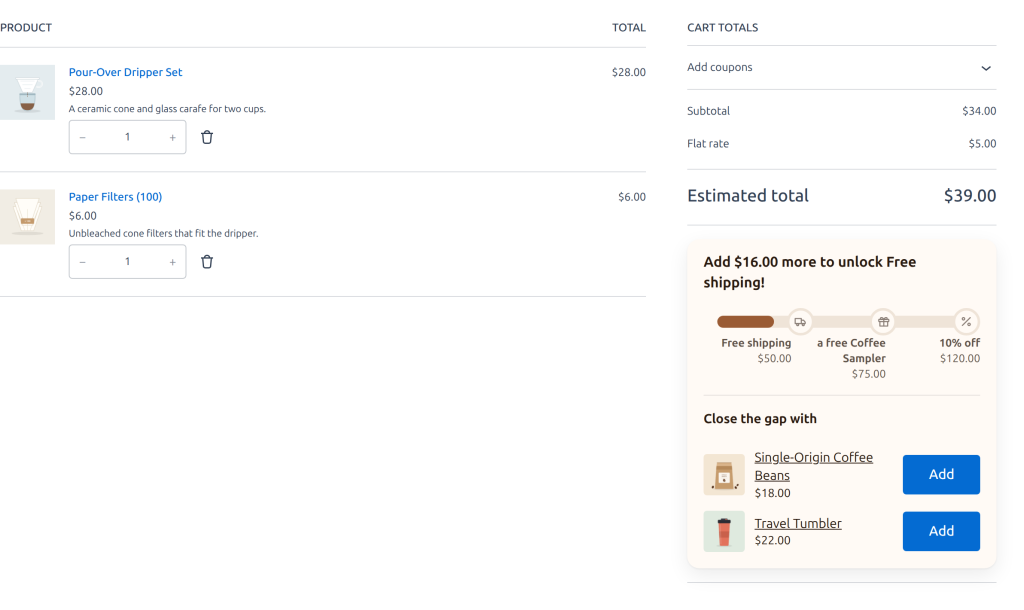
After your pinned products come cross-sells and products from the same categories as the cart, then best sellers. Out-of-stock, hidden and already-in-cart products are never suggested. A variable product links to its page unless exactly one variation fits.
// Display
Where the bar shows
Cart page and Checkout page, classic or block.
Mini-cart: classic themes show it in the WooCommerce mini-cart widget. With a block theme, open the Mini-Cart template part in the Site Editor and add the Cart Goal Bar block to the drawer.
Product pages, above Add to cart: the first goal, even before anything is in the cart.
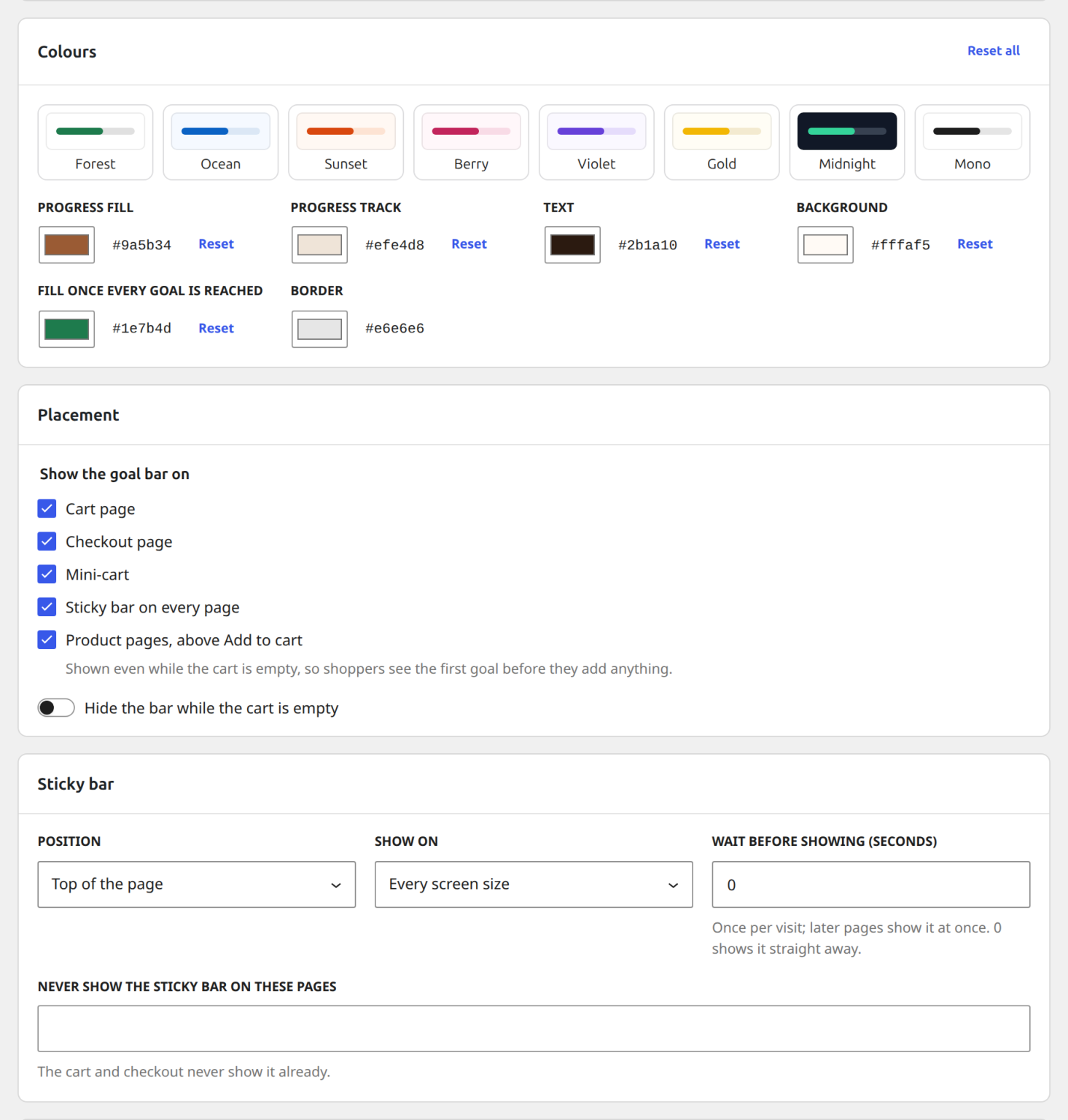
Sticky bar on every page, at the top of the page or the bottom of the screen. Choose the screen sizes, a delay before it appears, and pages to keep it off. Shoppers can close it for the rest of their visit; the cart and checkout never show it.
The Cart Goal Progress block, on any page or post.
The [rewardcrate_goal] shortcode, anywhere shortcodes run.
Hide the bar while the cart is empty is on by default. Switch it off to show the first goal on the empty cart page, the sticky bar and anywhere you placed the block or shortcode.
Look and messages
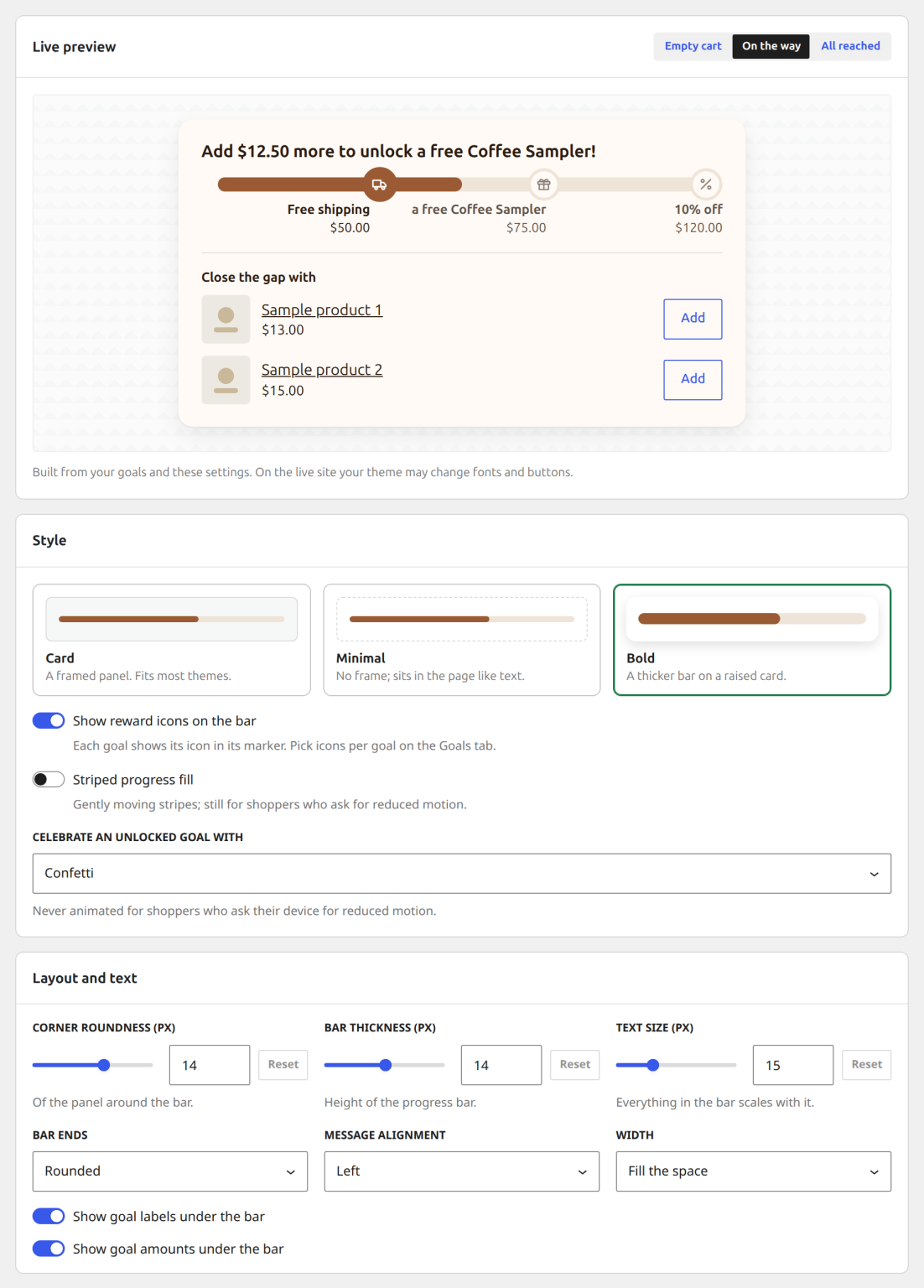
- Pick a Bar style: Card, a framed panel that fits most themes; Minimal, with no frame; or Bold, a thicker bar on a raised card. Tick Show reward icons on the bar and Striped progress fill if you like them.
- Choose how to Celebrate an unlocked goal: Confetti, Badge or Nothing. It is never animated for shoppers who ask their device for reduced motion.
- Under Layout and text, set the corner roundness, bar thickness and text size, rounded or square bar ends, left or centred messages, a full or narrow width, and whether goal labels and amounts show under the bar.
- Under Colours, start from a palette (Forest, Ocean, Sunset, Berry, Violet, Gold, Midnight or Mono), or set the progress fill, track, text, background, border and the fill once every goal is reached. A warning shows when the text would be hard to read.
- Write the Messages: while the cart is empty, while working towards a goal, when a goal unlocks and when every goal is unlocked, plus the suggestions heading and the Add button text.
{amount}is the amount still needed,{goal}the cart amount that unlocks the goal,{reward}the goal label. - Check the Live preview with an empty cart, one on the way and one with every goal reached, then click Save changes.
To change the markup, copy templates/goal-widget.php to yourtheme/rewardcrate/goal-widget.php and edit it there. Hide the bar while the cart is empty keeps it out of the way until there is something to measure.
For small changes, Custom CSS at the bottom of the Display tab is quicker. It loads only where the bar shows, never in wp-admin.
// Results
Reading the stats
Orders with goals: paid orders placed with cart goals on, over the last 30 days.
Gap-filler revenue: what the suggested products brought in.
Reward cost: gifts, goal discounts and waived shipping, excluding tax.
Average order value: orders that reached a goal or bought a suggestion, against orders that did neither.
Orders per goal: how often each goal was reached.
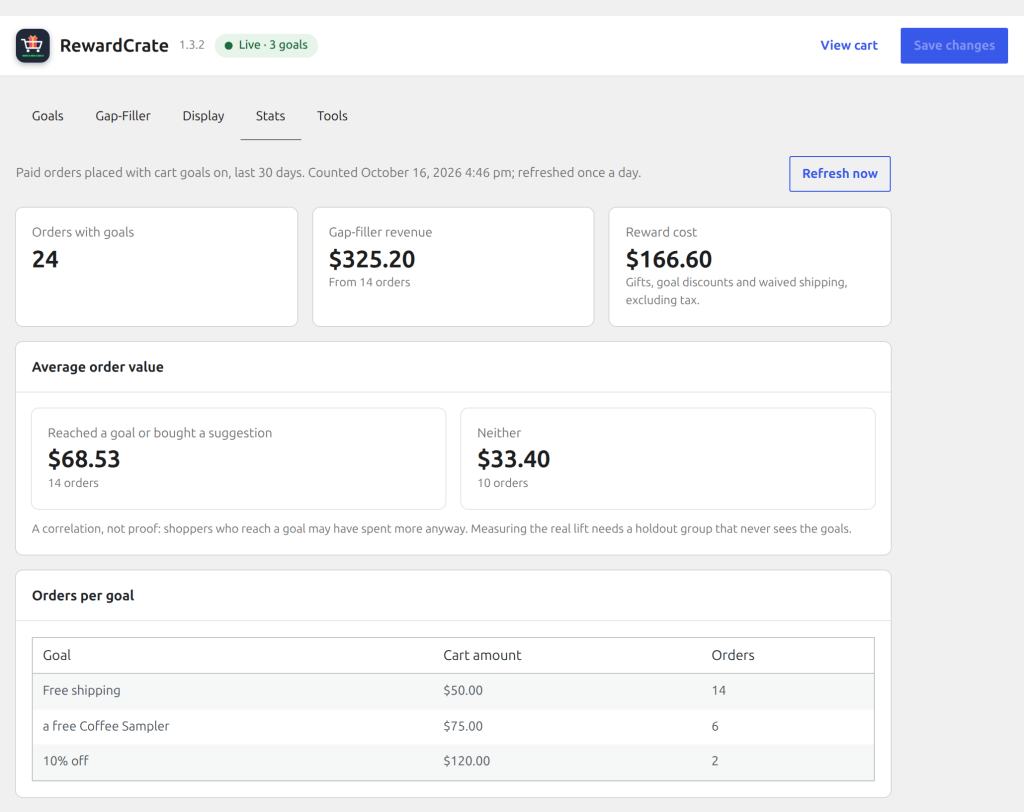
Stats refresh once a day, and Refresh now recounts them. A higher average order value is a correlation, not proof: shoppers who reach a goal may have spent more anyway. Measuring the real lift needs a holdout group that never sees the goals.
Filters
smcc_goal_rules — change the goals per request.
smcc_threshold_amount — convert goal amounts for a multi-currency store.
smcc_gap_filler_currency_rate — the exchange rate suggestions use under a currency switcher.
smcc_tier_is_unlocked — veto a goal.
smcc_gap_filler_candidates and smcc_gap_filler_ranked — shape the suggestions.
smcc_state_data — change what the bar receives.
smcc_order_recorded — an action that runs after an order’s goals are stored.
smcc_should_display — hide the bar on a request while its rewards still apply.
// Tools
Back up, move and reset
Export settings downloads your goals, suggestions, colours and messages as a file, unsaved changes included.
Import settings loads that file. Review what it changed, then click Save changes. Gift and pinned products are matched by ID, so check them after importing on another store.
Copy shortcode copies [rewardcrate_goal] for any page, post or widget.
Reset to defaults removes every goal and puts suggestions, display and messages back to their defaults. Nothing changes until you save, and recorded order stats are kept.
All four live on the Tools tab of WooCommerce → RewardCrate. Export before a big change and you can always go back.
// FAQ
Questions
Does this send anything to an external service?
No. Everything runs on your own server and the plugin makes no remote requests. There is no account, no API key and no per-order fee.
Does it work with the block cart and checkout?
Yes. The bar appears in the Cart and Checkout blocks, where you can move it with the Cart Goal Bar block, and in the classic shortcode cart and checkout.
Can shoppers type a goal’s discount code?
No. Goal discounts are virtual coupons that only exist while their goal is reached. Typed in by hand below the goal, they are rejected like any unknown code.
Can a shopper remove the free gift?
Yes. A removed gift is remembered for that visit and not added again for the same goal. If the cart drops below the goal and reaches it again, the gift is offered again.
Does it work with multi-currency plugins?
Goal amounts are saved in your store currency. Convert them with the smcc_threshold_amount filter, which receives the amount and the goal. The WordPress.org FAQ has ready snippets for WPML, Aelia and CURCY.
Suggested products follow the shopper’s currency on their own: RewardCrate measures the exchange rate from your products’ converted prices. To set it yourself, use the smcc_gap_filler_currency_rate filter.
What happens if I uninstall it?
Its settings and cached data are removed from every site. The goal details recorded on past orders are kept, because they are part of those orders’ history.
Still stuck?
If something here is wrong or missing, tell us and we will fix it — then write it down for the next person.